---
title: How to load a csv file
description: Monster Connect Knowledge Base
---
[Skip to content](https://kb.monsterconnect.com/how-to-load-a-csv-file#main-content)
English - United States
Show submenu for translations
MonsterConnect
Open main navigation
Close main navigation
- English - United States
Show submenu for translations
- [Contact us](https://share.hsforms.com/1JPnBFAXgToqPHutAay2hIgs5xn2)
[Contact us](https://share.hsforms.com/1JPnBFAXgToqPHutAay2hIgs5xn2)
How can we help you?
- There are no suggestions because the search field is empty.
1. [Monster Connect Knowledge Base](https://kb.monsterconnect.com/?hsLang=en-us)
2. [FAQs](https://kb.monsterconnect.com/faqs?hsLang=en-us)
3. [Importing Lists](https://kb.monsterconnect.com/faqs?hsLang=en-us#importing-lists)
April 21, 2025
# How to load a csv file
## Instructions on how to upload a .CSV file properly for list imports.
If you aren't a salesforce.com user or if you simply want to get started quickly you can load a .csv spreadsheet simply by loading and mapping the fields.
**Step 1: Click "Lists Icon"** on the admin tab of the MonsterConnect app.
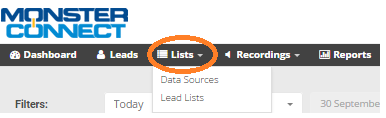
**Step 2: Click "Data Source"**
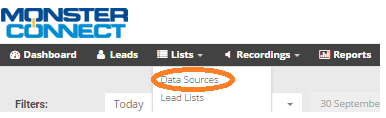
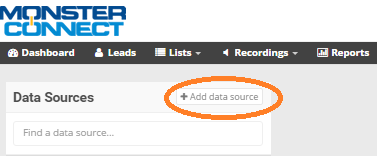
**Step 3: Choose Add Campaign**
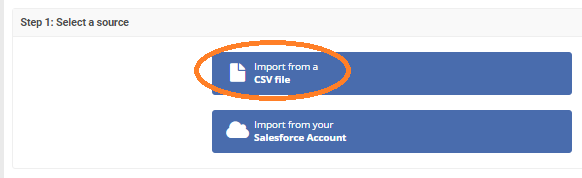
**Step 4: Select "Import From .csv"**
**Step 5; Choose and Name .csv file**
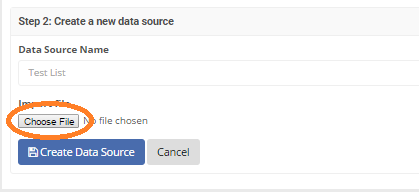
**Note:** Make sure to Name your data source, and make sure you select a file. If you receive an error, you want to first check to make sure you have your file formated in a .csv
**Step 6: Select File** - Once you have selected your file from your computer click open (Please make sure you file is in .csv) If you aren't familar with .csv format **click here**.

**Step 7:** **Mapping Fields** - You will be asked to map the fields from your spreadsheet to the corresponding fields in MonsterConnect. Please Map **First Name, Last Name, Title, Company Name, Email (Not Mandatory), Phone** *(This will be the phone number you want us to call. Your list won't load if you do not map a phone number field)*
***!Note**: You will see LinkedIn profile id, salesforce id, and master url (Please ignore these fields)*
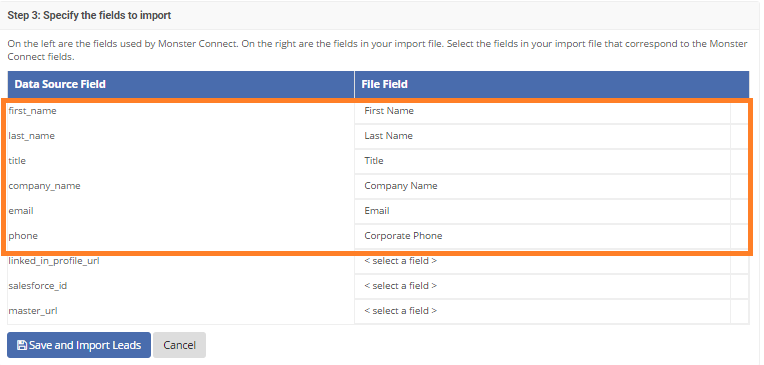
**Step 8: Save and Import** : Once you have mapped your fields **"Click Save and Import Leads"**
**!Note:** All the fields in your spreadsheet will be imported; the mapped fields are important and display in certain areas of our application. Please map fields accordingly.
- [FAQs](https://kb.monsterconnect.com/faqs?hsLang=en-us#main-content)
- [Integrations](https://kb.monsterconnect.com/faqs?hsLang=en-us#integrations)
- [Technical](https://kb.monsterconnect.com/faqs?hsLang=en-us#technical)
- [Lists](https://kb.monsterconnect.com/faqs?hsLang=en-us#lists)
- [Going Live](https://kb.monsterconnect.com/faqs?hsLang=en-us#going-live)
- [Importing Lists](https://kb.monsterconnect.com/faqs?hsLang=en-us#importing-lists)
- [Calls & Dialing](https://kb.monsterconnect.com/faqs?hsLang=en-us#calls-dialing)
- [User creation](https://kb.monsterconnect.com/faqs?hsLang=en-us#user-creation)
- [Getting started](https://kb.monsterconnect.com/getting-started?hsLang=en-us#main-content)
- [Voicemails](https://kb.monsterconnect.com/getting-started?hsLang=en-us#voicemails)
- [Importing Lists](https://kb.monsterconnect.com/getting-started?hsLang=en-us#importing-lists)
- [Calls & Dialing](https://kb.monsterconnect.com/getting-started?hsLang=en-us#calls-dialing)
- [Starting a Session](https://kb.monsterconnect.com/getting-started?hsLang=en-us#starting-a-session)
- [Setting Up Your User Profile](https://kb.monsterconnect.com/getting-started?hsLang=en-us#setting-up-your-user-profile)
- [Overview and Setup](https://kb.monsterconnect.com/getting-started?hsLang=en-us#overview-and-setup)
- [Troubleshooting](https://kb.monsterconnect.com/troubleshooting?hsLang=en-us#main-content)
- [Voicemails](https://kb.monsterconnect.com/troubleshooting?hsLang=en-us#voicemails)
- [Calls & Dialing](https://kb.monsterconnect.com/troubleshooting?hsLang=en-us#calls-dialing)
- [Integrations](https://kb.monsterconnect.com/troubleshooting?hsLang=en-us#integrations)
- [Lists](https://kb.monsterconnect.com/troubleshooting?hsLang=en-us#lists)
- [Starting a Session](https://kb.monsterconnect.com/troubleshooting?hsLang=en-us#starting-a-session)
- [Integrations](https://kb.monsterconnect.com/integrations?hsLang=en-us#main-content)
- [Lists](https://kb.monsterconnect.com/integrations?hsLang=en-us#lists)
- [Integrations](https://kb.monsterconnect.com/integrations?hsLang=en-us#integrations)
- [Calls & Dialing](https://kb.monsterconnect.com/integrations?hsLang=en-us#calls-dialing)
- [Importing Lists](https://kb.monsterconnect.com/integrations?hsLang=en-us#importing-lists)
# MonsterConnect
[mailto:email@email.com](mailto:email@email.com)
Copyright © 2026, MonsterConnect